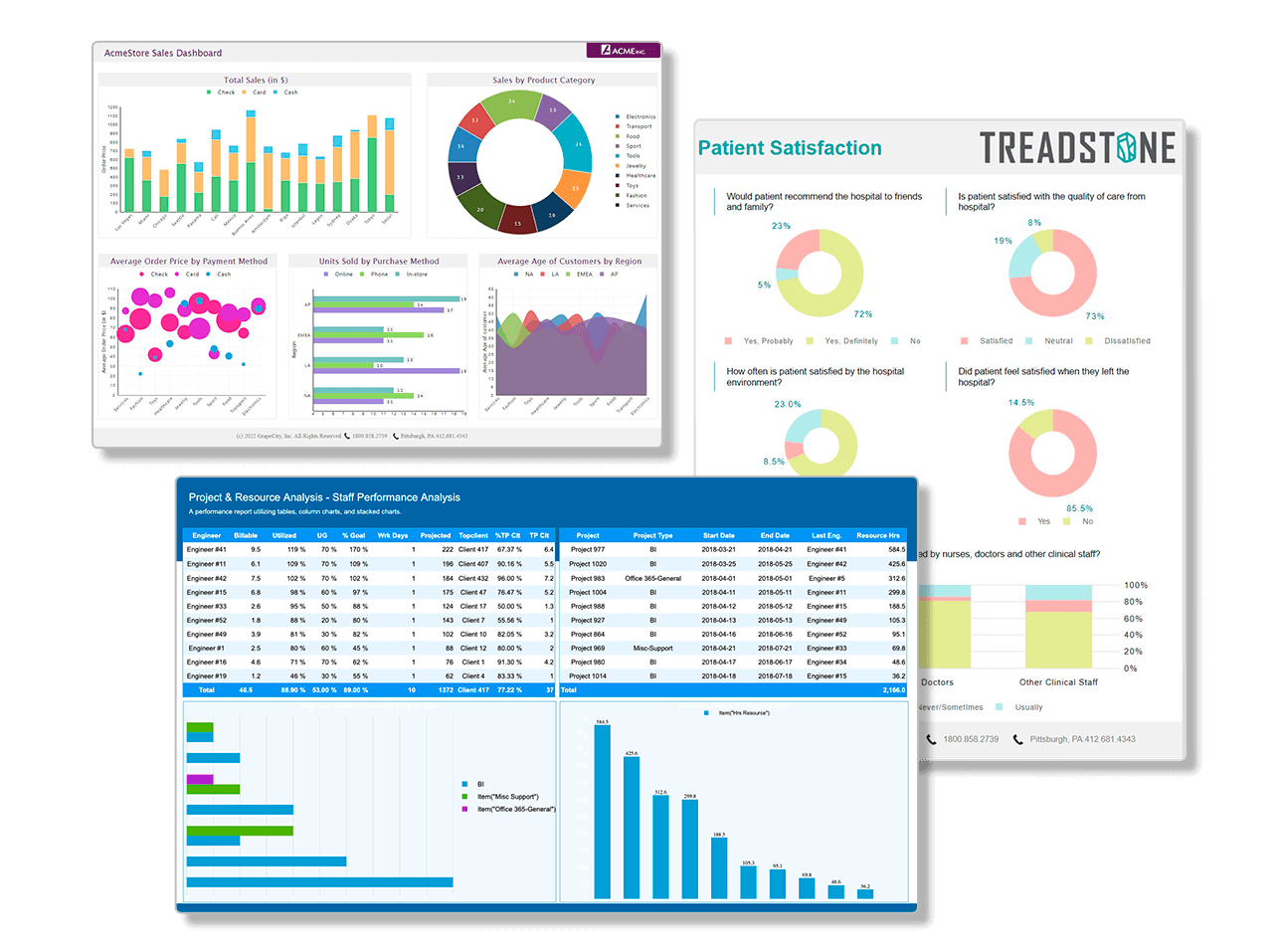
ActiveReports - Screenshot


Award-winning .NET reporting tool for Microsoft Visual Studio featuring unmatched customization, fast performance, super high quality, and multi-language features — all battle-tested in tens of thousands of applications worldwide.

Compare products! Download ActiveReports now! Buy ActiveReports now!

ActiveReports - Features and Benefits

Pioneering .NET Reporting Features

ActiveReports was the first to introduce these technologies to .NET developers all over the world:

  1. First Visual Basic report builder
  2. First Visual Studio report designer
  3. First code-behind, event-based reporting model
  4. First to feature royalty-free deployment
  5. First with unbound reports and XML support
  6. First end-user report designer
  7. First Flash-based report viewer (ActiveReports 6)
  8. First with support for PDF digital signatures (ActiveReports 6)
  9. First with support for advanced RSS bar code formats (ActiveReports 6)
  10. Many more innovations are planned for the future...

Rich Collection of Reporting Tools

When you buy ActiveReports, you get access to a complete set of .NET reporting tools refined by over a decade of customer feedback and the combined reporting experience of over 50,000 developers worldwide.

  1. Visual Studio report designer Screenshot | Learn More
  2. End-user report designer with redistributable end-user help Screenshot | Learn More
  3. End-user report viewer for Windows Learn More
  4. End-user report viewer for ASP.NET with HTML, Flash and PDF formats Screenshot | Learn More
  5. Extensive .NET class library that allows nearly unlimited customization Learn More
  6. Extensive chart control library, including financial charts Screenshot | Learn More
  7. Bar code control, including the new RSS (compressed) formats Screenshot | Learn More
  8. HTTP handlers to allow URL publishing of your reports Screenshot | Learn More
  9. PDF reporting component, with support for digital signatures Screenshot | Learn More
  10. Export components for HTML, Excel, PDF, RTF, and TIF Learn More
  11. Migration tools for previous versions of ActiveReports and MS Access Learn More

Easy to Get Started

The ActiveReports report designer integrates seamlessly into the Visual Studio development environment. Once the product is installed on your machine:

  1. Adding a report to your project is as easy as adding a class or a form. When you select Add New Item, your Visual Studio installed templates list contains the ActiveReports 6 File as well as an ActiveReports 6 Access Import Wizard.
  2. To use the report viewer, report designer and related ActiveReports components, just add them to your Visual Studio toolbox like any other component.

Easy-to-Use Visual Studio Report Designer

  • The ActiveReports designer tools make it easy to start designing great looking reports quickly. The Report Design view makes it easy to have all design elements in one place.
  • The ActiveReports Report Explorer puts all report sections, fields, parameters and report settings at your fingertips.
  • The ActiveReports toolbox allows you to drag and drop a powerful set of ActiveReports controls onto your report and customize them.
  • The ActiveReports Report Data Source dialog allows you to quickly connect to any data source.
  • Use the familiar Visual Studio Properties window to customize any element of your report.

Learn What's New in Designer Features in ActiveReports 6

Easy-to-Use End-User Report Designer

The Professional Edition of ActiveReports 6 features a royalty-free, fully customizable end-user report designer control for Windows Forms. This allows you to host the report designer in your own Windows Forms applications and allow your end users to create and modify their own reports.

  • You can fully customize the end-user report designer and make it as simple or as full-featured as you want by using the toolbox, menus, tool strips and status bar features. You can also combine the Designer control with the included Toolbox and Report Explorer controls and the Visual Studio PropertyGrid control to give your end users full reporting functionality.

Redistributable Help for End Users

  • ActiveReports Professional Edition includes a help file for the end-user report designer that you can distribute to your end users out of the box.
  • You can also use the included Innovasys HelpStudio 3 User Guide project to customize and compile your own CHM or PDF file. (Requires HelpStudio version 3)

.NET Reporting SDK for Full Customization

The award-winning success of ActiveReports for .NET reporting is based in a large part on the nearly unlimited programming flexibility of the ActiveReports architecture that enables .NET developers to create almost any kind of report they can imagine!

Every ActiveReport is a .NET object. Almost every action that occurs while generating reports is exposed via a corresponding .NET event. In fact, when you create a new report inside the Visual Studio IDE, you will notice that Visual Studio creates a new class file (.vb or .cs extension), and a resource file (.resx) that inherits from ActiveReports. At this point, you have access to all of the protected members of the report. Treat this object like any other object in .NET and add your own properties, methods, and events to customize it to meet your business needs whether you are developing Windows applications or ASP.NET applications.

Learn More about the ActiveReports Class Library for .NET reporting.

Full Support for Ad Hoc Reporting

All ActiveReports features are exposed as .NET objects and controls. They are completely accessible from code at run time. Moreover, ActiveReports provides an extensive event-based programming model. Together, these two features allow you to create and modify the properties of any of the report sections or controls to produce an ad hoc report at run time. The section Format event allows you to modify the properties of the section and its controls, including height, visibility, and other visual properties.

Flexible End-User Report Viewing

  • Windows Report Viewer

    The included Viewer control for Windows Forms allows you to offer your end users report zooming and previewing, multiple tabs for viewing hyperlinks, split-page and multi-page views, a Table of Contents pane, A Thumbnails pane with thumbnails of report pages, text searches, and annotations. You can customize the toolbar with extra buttons, and hide features that you don't want to use. Add the control to your Visual Studio toolbox and drop it on a form to get started.
  • Exporting Reports to the Web

    ActiveReports provides components that allow you to export your reports into several popular formats. For exporting to the Web, you can export the report to PDF, Excel, HTML, or you can even create custom HTML output.
  • Web Report Viewer (Professional Edition)

    The easiest way to display reports on the Web is to drop the Professional Edition Web Report Viewer control onto a Web form and select the report in the Web Viewer's Report Name property. The Web Viewer gives you many options to customize the format of the reports and the look of the viewer. The viewer can be of type Html, RawHtml, PDF, or Flash. Each viewer type has related properties that you can configure to customize the viewer's look and feel.
  • New! Flash Report Viewer for the Web (Professional Edition)

    By far, the most customizable viewer type is the new Flash Report Viewer in the Professional Edition. It comes with several built-in localizations (English, Japanese, and Russian) as well as seven themes. Each theme has a different set of colors and fonts for a different look and feel.
  • Hyperlink to Your Report (Professional Edition)

    The Professional Edition also licenses you to use HTTP handlers. Add the handlers to the XML view of your Web.config file, and you can use hyperlinks to run your reports, pass in parameters, and display them in the browser in HTML (default) or PDF format.

Easy, but Powerful Report Printing

  • With ActiveReports, printing your reports is not only easy but powerful and fast. You can configure duplex printing, print multiple copies and configure page orientation both at design time and at run time.

For an example of no-touch printing using the new Flash Report Viewer in the Professional edition, click here.

Built-in Charts for .NET Reporting

The ActiveReports toolbox includes a chart control that supports all of the most commonly used 2D and 3D chart types, including XY charts and financial charts. With advanced charting features like custom axes, annotations, markers, legends, and constant lines, you can create any chart you need. Using code, you can natively export charts to various image formats.

  • Common Charts, Including 3D Versions

    1. Line [3D] charts compare trends over a period of time or across categories.
    2. Bar [3D] charts compare values of items across categories.
    3. Area [3D] charts compare trends over a period of time or across categories.
    4. Bezier or spline charts compare trends over a period of time or across categories.
    5. Doughnut [3D] charts show how the percentage of each data item contributes to the total.
    6. Gantt charts are project management tools used to chart the progress of individual project tasks.
    7. Horizontal Bar [3D] charts compare values of items across categories with the axes reversed.
    8. Scatter charts compare values across categories.
    9. Stacked Area [3D][100%] charts are area charts with two or more data series stacked one on top of the other to show how each value contributes to a total.
    10. Stacked Bar [3D][100%] charts are bar charts with two or more data series stacked one on top of the other to show how each value contributes to a total.
    11. Funnel 3D charts show how the percentage of each data item contributes to the whole, allowing the data to be viewed in a three dimensional format.
    12. Pyramid 3D Chart charts show how the percentage of each data item contributes to the whole, allowing the data to be viewed in a three dimensional format.
  • XY Charts

    1. Bubble charts are XY charts in which bubbles represent data points. The first Y value is used to plot the bubble along the Y axis, and the second Y value is used to set the size of the bubble.
    2. Line XY charts plot points on the X and Y axes as one series and use a line to connect points to each other.
    3. Plot XY charts show the relationships between numeric values in two or more series sets of XY values.
  • Financial Charts

    1. Candle charts display stock information using High, Low, Open and Close values.
    2. HiLo charts display stock information using High and Low or Open and Close values.
    3. HiLo Open Close charts display stock information using High, Low, Open and Close values.
    4. Kagi charts display supply and demand trends using a sequence of linked vertical lines. The thickness and direction of the lines vary depending on the price movement.
    5. Point and Figure charts define pricing trends using stacked columns of X's to indicate that demand exceeds supply and columns of O's to indicate that supply exceeds demand.
    6. Renko charts use bricks of uniform size to chart price movement. The change in box color and direction signifies a trend reversal.
    7. Three Line Break charts use vertical boxes or lines to illustrate price changes of an asset or market.

Flexible Export Features for Reports

ActiveReports includes tools for exporting your .NET reports to popular formats like Adobe PDF, Microsoft Excel, RTF, HTML, Text and TIFF. You can use them in both Windows-based and Web-based applications. Provide export options for your users, or have your application create the exports automatically. With a separate DLL for each export format, you are free to use and deploy any combination.

  • Export Report to HTML

    HTML, or hypertext markup language, is a format that opens in a Web browser. You can control whether to use Dynamic HTML (DHTML) or Legacy HTML (HTML).
  • Export Report to PDF

    The well known PDF reporting features of ActiveReports just got even better in the Professional Edition. While exporting .NET reports to PDF, you can now digitally sign your reports with a hidden signature or with visible text and graphics.
  • Export Report to Microsoft Excel (XLS)

    Microsoft Excel (XLS) is format that opens in Microsoft Excel as a spreadsheet. You can set options for row height and column widths, grid lines, file formats, multiple worksheets, merging cells, etc.
  • Export Report to RTF

    RTF, or Rich Text format, opens in Microsoft Word, and is native to WordPad. You can enable full justification, lines, back colors, shapes, and borders in MS Word's Web Layout View with the EnableShapes property.
  • Export Report to TIFF

    TIFF, or tag image file format, opens in the Windows Picture and Fax Viewer or any TIFF viewer. It is a multi-page image format and you can control the compression scheme.

Built-In Bar Code Controls Save You Time and Money

ActiveReports has always had excellent integrated bar code functionality that saved you time and effort. The latest version supports six new barcode symbologies. You can use the new Reduced Space Symbology (RSS) styles to encode Composite Component (CC) extended EAN and UPC information in less space. The new styles are RSS14, RSS14Truncated, RSS14Stacked, RSS14StackedOmnidirectional, RSSExpanded, and RSSExpandedStacked.

World-Class Reporting Performance and Quality

If you admired ActiveReports for its world-class quality and speed with over 50,000 users worldwide, you will love version 6 even more. The new version contains a number of improvements to enhance the performance and quality of the reporting engine, making it better, faster and smarter than ever before.

Rich Product and Public Knowledgebase

When you buy ActiveReports and related products, you are getting a market leader product, and the confidence of knowing that for the last decade, over 50,000 developers have adopted and enriched the product with their experience and skills and have contributed to a global online knowledge base plus innumerable links, articles, forum discussions, comparisons, blogs and emails.

Royalty-Free Deployment

With ActiveReports, you create reports within Visual Studio and compile them directly into the executable. You can distribute ActiveReports assemblies using XCopy deployment or place them in the Windows global assembly cache (GAC). The object model provides the reporting engine as a single, managed, strong-named assembly. There is no additional setup on the server or the client's machine. Since ActiveReports is fully managed, there are no dependencies on 3rd party applications.


Privacy Policy | Copyright © 1997-2010 - GrapeCity, inc.