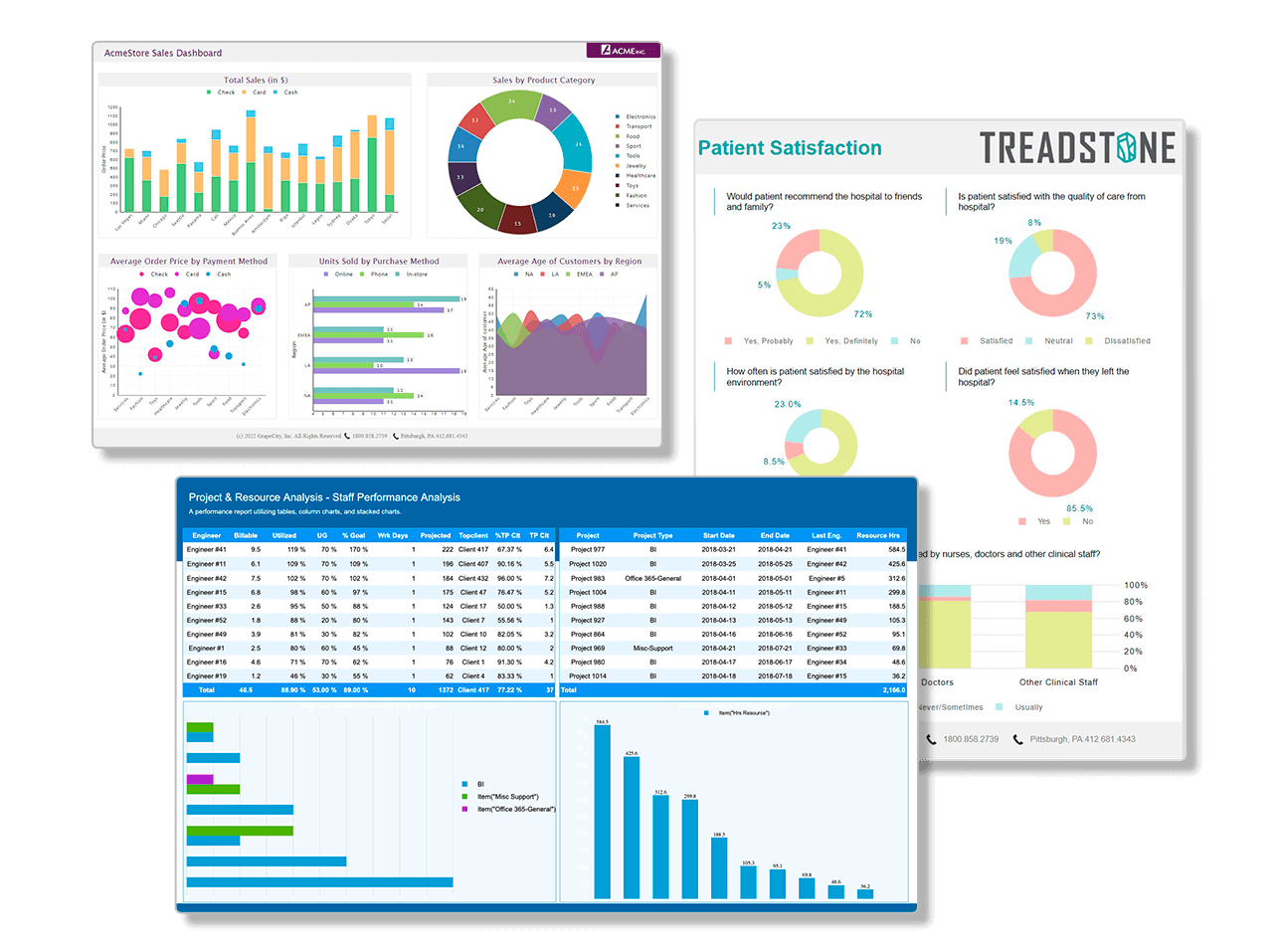
You can use expressions in many report item properties to calculate their values. You can use an expression to concatenate fields, to concatenate strings with fields, to aggregate data, to set formatting based on field values, to show or hide other report items based on field values and even to display a graphical representation of the data.
This walkthrough illustrates the usefulness of expressions to achieve many different effects.
The walkthrough is split up into the following activities:
- Creating a Data Dynamics Report
- Connecting the report to a data source
- Adding a Dataset
- Adding controls to the report to contain data
- Adding a field expression to a text box to multiply two field values
- Adding an Immediate If expression to show or hide a report item
- Adding a Data Visualization expression to display data graphically
- Viewing the report
To complete the walkthrough, you must have access to the Reels sample database included with this installation.
When you are finished you will have a report that looks similar to the following.

Creating a Data Dynamics Report
To create a report in Visual Studio
- Create a new project in Visual Studio.
- From the Visual Studio Project menu, select Add New Item.
- In the Categories pane, select Data Dynamics Reports.
- In the Templates pane, select Report and name the report ProductStock.rdlx.
- Click Add in Visual Studio 2005.
Connecting the report to a data source
To connect the report to a data source
- If the Data Explorer is not in view, from the View menu, select Other Windows, then Data Dynamics Reports Data Explorer (at the bottom).
- Click the Add icon and select the Data Source... option.
- In the Report DataSource smart panel that appears, select the General page.
- Change the Name to Reels.
- Select the Shared Reference checkbox.

- Click the Browse button and select ReelsDataSource.rdsx, which is located in C:\My Documents\Data Dynamics\Reports\build number\Samples\Reels.

Note: In Windows Vista, the path is C:\User\your name\Documents\Data Dynamics\Reports\build number\Samples\Reels\. - Click the Accept button in the lower right corner to close the smart panel and see Reels appear in the Data Explorer.

Adding a dataset
To add a dataset
- Click the Add icon and select the Data Set... option.
- In the DataSet smart panel that appears, select the General page.
- Change the Name to DVDStock.
- On the Query page, paste the following SQL command into the Query text box:
SELECT * FROM DVDStock;
- Click the Validate icon to validate the query and to populate the Fields list.
- Click the Accept button in the lower right corner to close the smart panel and see MovieRatings and the selected fields appear in the Data Explorer.

Adding controls to the report to contain data
To add controls to the report
- From the toolbox, drag a Table data region onto the body of the report.
- With the table selected in the property grid, set the DataSetName property to DVDStock.
- Click inside the table to display the row and column handles along the left and top edges of the table.
- Select the second column using the column handle at the top and set the Width property to 1in.
- Select the third column using the column handle at the top and set the Width property to 1in.
- Right-click in the column handle at the top of the third column and choose Insert Column to the Right to add a fourth column of the same width.
- Select the first column using the column handle at the top and set the Width property to 3.5in.
From DVDStock in the Data Explorer, drag the following fields into the detail row and set their properties as shown below.

Tip: Making some columns narrower before adding columns or making others wider prevents the table from pushing the width of the report.
Field Column Special Formatting Title TableColumn1 StorePrice TableColumn2 C (for currency formatting) InStock TableColumn3 - Dragging fields into the detail row automatically places static labels in the header row. Select the header row using the row handle to the left and click the Bold button.

Adding a field expression to a text box to multiply two field values
To add a field expression to a text box to multiply two field values
- In the detail row of the fourth column, enter the following expression.
= Fields!InStock.Value* Fields!StorePrice.Value
- In the Property grid, set the Format property of the text box to C for currency formatting.
- In the header row immediately above this text box, enter Stock Value for the static label.
Adding an Immediate If expression to show or hide a report item
To add an iif expression to show or hide a report item
- Select the cell in which we multiplied two field values (in the detail row of the fourth column) and in the Property grid, expand the Visibility property.
- In the Hidden property, enter the following immediate if expression to hide the text box if there is no stock for the item.
=iif(Fields!InStock.Value=0, True, False)
Adding a Data Visualization expression to display data graphically
The ColorScale3 visualizer function displays a range of colors to indicate minimum, average, and maximum values in the data. For information on other visualizer functions, see the Data Visualization topic.
To add a data visualization expression
- Select the cell in the detail row under the In Stock label and enter the following expression in the BackgroundColor property.
=ColorScale3(Fields!InStock.Value, 0, (Avg(Fields!InStock.Value, Nothing)), (Max(Fields!InStock.Value, Nothing)), "Red", "Yellow", "Green")

Note: The parameters of the ColorScale3 function evaluate to (Value, Minimum, Average, Maximum, StartColor, MiddleColor, EndColor). Note that aggregate functions (Avg and Max) are used within the ColorScale3 function. For more information on these and other aggregate functions, see the Functions topic. - From the File menu, select Save.
Viewing the report
Any report designed with Data Dynamics Reports can be opened in the included Data Dynamics Reports Viewer application or you can view it at design time.
To view the report at design time
- Click the Preview tab of the report designer.
To view the report at run time
- Add the ReportPreview control to your Visual Studio toolbox and drop it onto your Windows form.
- Set the Dock property of ReportPreview1 to Fill so that it will automatically resize if the form is resized at run time.
- Double-click the viewer to go to the Load event and use code like the following.
'Visual Basic.NET Dim rpt As New System.IO.FileInfo(Application.StartupPath & "..\\..\\ProductStock.rdlx") Me.ReportPreview1.OpenReport(rpt)
//C# System.IO.FileInfo rpt = new System.IO.FileInfo(Application.StartupPath + @"..\..\..\ProductStock.rdlx"); this.reportPreview1.OpenReport(rpt);
- Run the project.